
GASWorkS offers two ways to export data for use in other applications: the Export routine (Utilities menu) and the Quick Export routines (File menu > Quick Export submenu). This article covers exporting customer, node, or pipe data to CSV, DBF, and XLS files with the Export routine. The table below shows which file types each method supports:
| File Type | Export | Quick Export |
|---|---|---|
| CSV File – Customer | ✓ | |
| CSV File – Node | ✓ | |
| CSV File – Pipe | ✓ | |
| CSV File Set | ✓ | |
| DBF File – Customer | ✓ | |
| DBF File – Node | ✓ | |
| DBF File – Pipe | ✓ | |
| DXF File | ✓ | |
| KML File | ✓ | |
| SHP File – Customer | ✓ | |
| SHP File – Node | ✓ | |
| SHP File – Pipe | ✓ | |
| SHP File Set | ✓ | |
| XLS 8.0 & 97 Workbook – Customer, Node, Pipe | ✓ | |
| XLS 8.0 & 97 Worksheet – Customer | ✓ | |
| XLS 8.0 & 97 Worksheet – Node | ✓ | |
| XLS 8.0 & 97 Worksheet – Pipe | ✓ |
See the GASWorkS User’s Manual for more on each Export routine, and the Quick Export topic in the Menu Items section for the File-menu shortcuts.
Export A CSV File – Customer, Node, Or Pipe
Exports customer, node, or pipe data to a CSV (Comma Separated Values) file.
- With a model open and the GDI Window displayed, select Export from the Utilities menu.
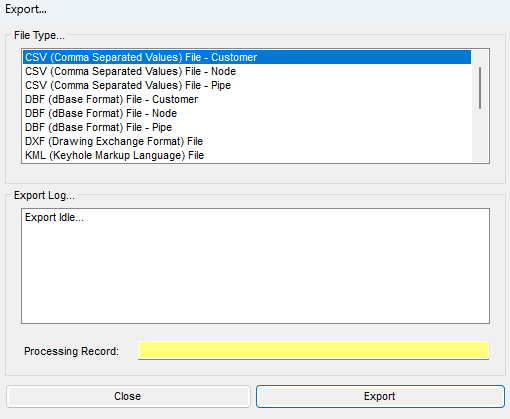
- On the Export screen, select one of the CSV (Comma Separated Values) File items from the File Type list and click Export.
- On the Save screen, accept the default file name and location or change them, then click Save.
- If overwriting an existing file, respond to the confirmation message as appropriate.
- The Export screen reappears; the Export Log section shows the routine’s status. Click Close once it’s complete.
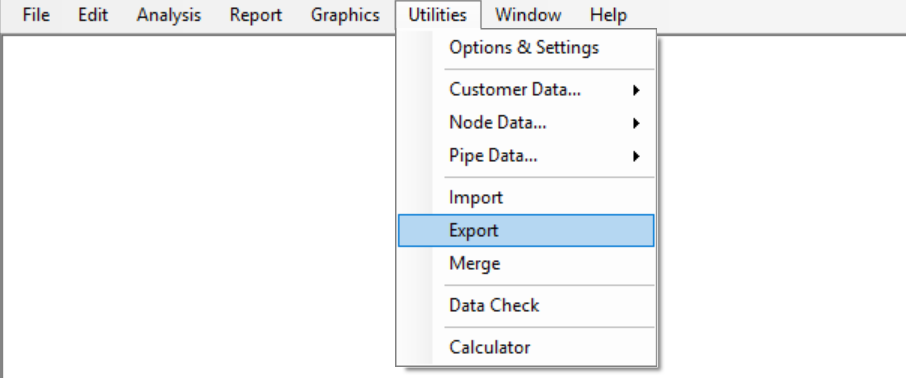
Reached from the Utilities menu > Export; there is no GDI Command Line alias for this routine.
Notes
- The default file naming convention appends the first letter of the chosen feature to the model name — a pipe CSV file, for example, ends in “_p.csv.”
- CSV files open as spreadsheets in programs like Microsoft Excel.
- Quick Export can build the same kind of spreadsheet from model data with fewer steps — select CSV File Set from the Quick Export submenu of the File menu.
Export A DBF File – Customer, Node, Or Pipe
Exports customer, node, or pipe data to a DBF (dBase Format) file.
- With a model open and the GDI Window displayed, select Export from the Utilities menu.
- On the Export screen, select one of the DBF (dBase Format) File items from the File Type list and click Export.
- On the Save screen, accept the default file name and location or change them, then click Save.
- If overwriting an existing file, respond to the confirmation message as appropriate.
- The Export screen reappears; the Export Log section shows the routine’s status. Click Close once it’s complete.
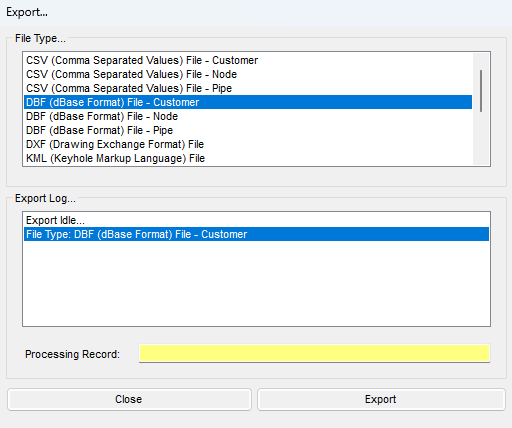
Reached from the Utilities menu > Export; there is no GDI Command Line alias for this routine.
Notes
- The default file naming convention appends the first letter of the chosen feature to the model name — a pipe DBF file, for example, ends in “_p.dbf.”
- The resulting dBase III format file (.dbf) can be imported or opened by various programs, including spreadsheet applications like Microsoft Excel. DBF files are also created as part of the Export A SHP File routine.
- This is different from the dBase IV format files GASWorkS uses as attribute files to link customer, node, and pipe data to an external database — see the Attribute Data section of the GASWorkS User’s Manual for more on that.
Export A XLS File – Customer, Node, Or Pipe
Exports customer, node, or pipe data to an XLS (Excel 8.0 & 97) file.
- With a model open and the GDI Window displayed, select Export from the Utilities menu.
- On the Export screen, select one of the XLS (Excel) 8.0 & 97 items from the File Type list and click Export.
- On the Save screen, accept the default file name and location or change them, then click Save.
- If overwriting an existing file, respond to the confirmation message as appropriate.
- If exporting customer data, respond to the message asking whether to also export the services: Yes exports them to a line-style SHP file ending in “_s.shp,” No exports customers only.
- The Export screen reappears; the Export Log section shows the routine’s status. Click Close once it’s complete.
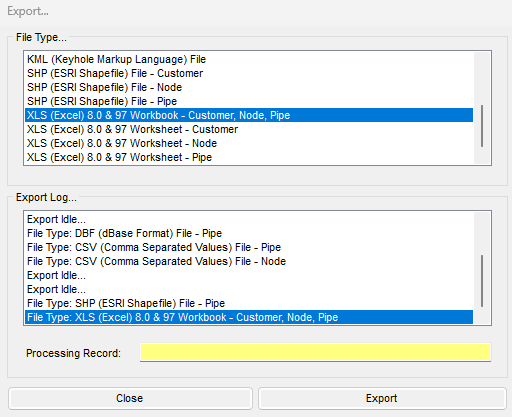
Reached from the Utilities menu > Export; there is no GDI Command Line alias for this routine.
Notes
- The default file naming convention appends the first letter of the chosen feature to the model name — a pipe XLS file, for example, ends in “_p.xls.”
Notes & Considerations
- Exporting writes an external file and never changes the model itself — there’s no model data to undo afterward, and no risk to the source model from running an export more than once.
See Also
- Exporting to DXF, KML & Shapefiles
FAQ
-
Where do I start an export?From the Utilities menu, select the Export item, choose the desired File Type on the Export screen, and click the Export command button. Each routine then walks through a Save screen, a format-specific settings screen, and finally reports its status in the Export Log.
-
What coordinate system does a KML export require?The model must be in longitude and latitude coordinates to export a KML file. If it is not, a message may be displayed asking whether to project the coordinates before the export continues.
-
Can I control what ends up in a DXF export?Yes — the DXF Export Settings screen is displayed during the export so you can review the settings. Its General data tab includes a Use Template File option, and GASWorkS provides a default template in the “GASWorkS 11\support\cad” folder.